activity
Keyboard Shortcuts
27/09/11 22:54 Filed in: Help
Shortcuts
Using Shortcuts, many functions of TrailRunner can be accessed in a fast and easy way.
Scrolling the map
With the TrackPad: track with two fingers. With the keyboard: all arrow-keys like ↑ and ↓. Alternatively Hold the space-bar and klick-drag with the mouse.
Zooming in and out
With the keyboard: hold ⌘ ↑ and ⌘ ↓ or ⌘ + and ⌘ -. With the TrackPad: hold ⌥ and track with two fingers up and down. While you use the hand-tool double-click to zoom in or ⌥ double-click to zoom out. If the map is the active view (last click was there), then ⌘ 1 to ⌘ 9 zoom from very high detail to a world overview.
Scrolling along a course
Click into the elevation chart, use ⌘ ← and ⌘ → to scroll along the cource
Editing Elements
To open the information pane for a way-point, double-click onto a way-point.
Closing lay out operations or starting secondary modes
While you create a track or route, double-click to close the process. If you create a track and double-click onto a way-point to close the track, a new track operation will start from there. While you create a route, click somewhere in the map to start a secondary create track mode. As soon as you close the track, it will be added to the route.
Display Modes
To change what's displayed in the track labels, ⌥-click somewhere in the map. To change the background maps, right-click to open the context-menu.
Undo Operations
While you create a track or route, press the backspace key to remove the last element added by the operation. While you create a track or route, press the ESC key to abort the operation.
If background maps are currently loading, abort the process by pressing ⌘ -. If a route animation should be aborted, just click somewhere in the map.
Forcing operations
While you create a route, you can't add tracks more than once while using the shortest path mode. To force add the track directly click on it.
Convenience Shortcuts
In the Import Workouts pane ⌥-click onto an entry to check or uncheck all other entries.
Using Shortcuts, many functions of TrailRunner can be accessed in a fast and easy way.
Scrolling the map
With the TrackPad: track with two fingers. With the keyboard: all arrow-keys like ↑ and ↓. Alternatively Hold the space-bar and klick-drag with the mouse.
Zooming in and out
With the keyboard: hold ⌘ ↑ and ⌘ ↓ or ⌘ + and ⌘ -. With the TrackPad: hold ⌥ and track with two fingers up and down. While you use the hand-tool double-click to zoom in or ⌥ double-click to zoom out. If the map is the active view (last click was there), then ⌘ 1 to ⌘ 9 zoom from very high detail to a world overview.
Scrolling along a course
Click into the elevation chart, use ⌘ ← and ⌘ → to scroll along the cource
Editing Elements
To open the information pane for a way-point, double-click onto a way-point.
Closing lay out operations or starting secondary modes
While you create a track or route, double-click to close the process. If you create a track and double-click onto a way-point to close the track, a new track operation will start from there. While you create a route, click somewhere in the map to start a secondary create track mode. As soon as you close the track, it will be added to the route.
Display Modes
To change what's displayed in the track labels, ⌥-click somewhere in the map. To change the background maps, right-click to open the context-menu.
Undo Operations
While you create a track or route, press the backspace key to remove the last element added by the operation. While you create a track or route, press the ESC key to abort the operation.
If background maps are currently loading, abort the process by pressing ⌘ -. If a route animation should be aborted, just click somewhere in the map.
Forcing operations
While you create a route, you can't add tracks more than once while using the shortest path mode. To force add the track directly click on it.
Convenience Shortcuts
In the Import Workouts pane ⌥-click onto an entry to check or uncheck all other entries.
How can I see the average pace/heartrate/speed for only a part of my workout?
29/07/11 15:43 Filed in: Help
Problem: When you import a workout as an activity in the diary, TrailRunner displays average and maximum values for speed, heart-rate for the whole workout, but how can you see these values for fixed split intervals or even a selected range like an uphill part only?
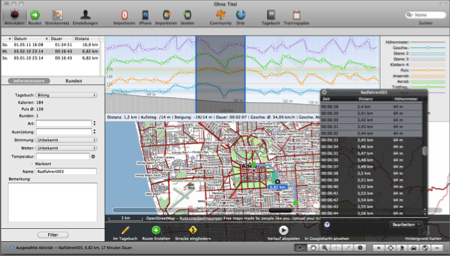
Solution: Within the graph, select a range to view the average/maximum values within that range. To get a more precise selection, e.g. to select km 1 to 2 or minute 60 to 90, open the black info panel that is available next to the lower window tools and directly select value ranges using a single-click to select the first value and shift-click to select the end of the selection range.

Modify workout courses
21/05/11 12:06 Filed in: Import
Problem: You forgot to turn off your GPS device or the signal was very weak at the beginning of your workout. You would like to trim your recorded workout data at the beginning and/or end.
Background: You can only modify workout courses for activities while you are about to import them. Once they are within the diary, it's not possible anymore to alter them.
Solution: In the import pane, open the black info panel.
There are two techniques you can now use to correct the data to be imported before you actually import them. In both cases, first open the black info panel in the bottom toolbar:
1) Select the range you want to remove. In the black info panel select the 'trim selection' command. This will remove all data points from the selection up to the nearest edge.
2) Select one data point, e.g. the first datapoint of the presumable next workout. In the black info panel, select the 'split at selection' command. This will remove the selected data point and create two new entries for either side of the selection.
Reference: Please also see Tutorial > Import Activities
Background: You can only modify workout courses for activities while you are about to import them. Once they are within the diary, it's not possible anymore to alter them.
Solution: In the import pane, open the black info panel.
There are two techniques you can now use to correct the data to be imported before you actually import them. In both cases, first open the black info panel in the bottom toolbar:
1) Select the range you want to remove. In the black info panel select the 'trim selection' command. This will remove all data points from the selection up to the nearest edge.
2) Select one data point, e.g. the first datapoint of the presumable next workout. In the black info panel, select the 'split at selection' command. This will remove the selected data point and create two new entries for either side of the selection.
Reference: Please also see Tutorial > Import Activities
Missing Activities
23/04/10 14:09 Filed in: Conceptual
Problem: In the main window, the activities list does not display entries that previously have been there. But I can find these in the diary.
Solution: Below the activities list there is a Filter Button. Please check if you have set a filter that hides the entries you where looking for.
Make Route from Activity takes veeeery long
28/03/10 23:05 Filed in: Import
Problem: You have selected an activity and click on the make route button. TrailRunner becomes unresponsive and calculates for a very long time until the process is finished or seemingly never finishes.
Background: If you have already collected a network of track and merge new elements into it, the calculation of what is already there and what is similar and can be consolidated can be very time intensive.
Suggestion: Please read the quick-guide tutorial and understand what way-point perimeters mean. If you can set up your network of tracks to contain landmarks with good perimeters, the operation above will be much faster.
Workaround: The only alternative is to merge the track by hand (yellow sign) and then later recreate a route based on the spitted and joined tracks. This will also give you the opportunity to initially set up your way-point perimeters.
> QuickGuide Tutorlal
Background: If you have already collected a network of track and merge new elements into it, the calculation of what is already there and what is similar and can be consolidated can be very time intensive.

Workaround: The only alternative is to merge the track by hand (yellow sign) and then later recreate a route based on the spitted and joined tracks. This will also give you the opportunity to initially set up your way-point perimeters.
> QuickGuide Tutorlal